Design Studio for Cut Machine
Wallet Passes AllianceArt & Design
3.813.00 Reviews
- Version
- 2.1.0
- Installs
- 100.00K
- Age Rating
- Everyone
Screenshots
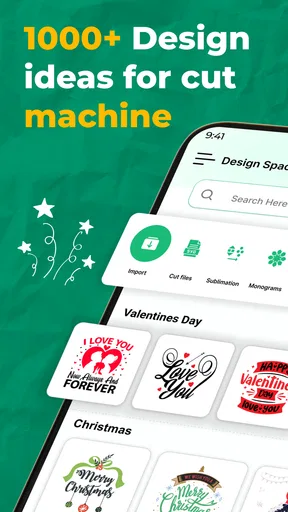
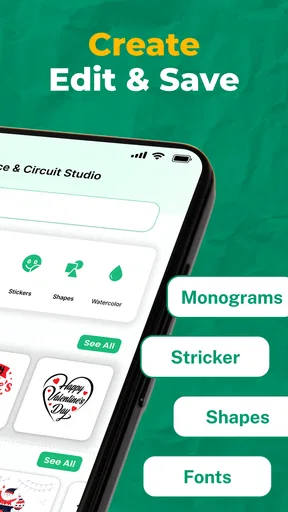
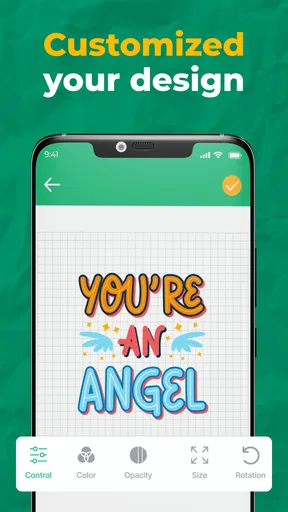
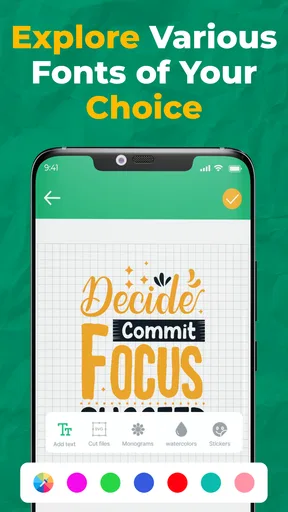

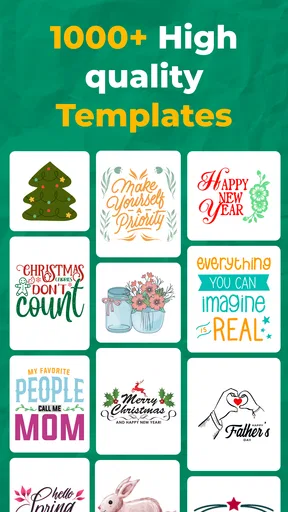
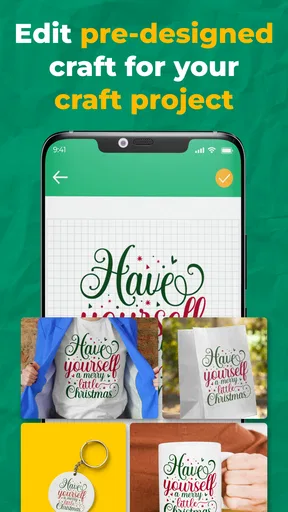
Our Review of Design Studio for Cut Machine
 Analysis by Appyee
I approached Design Studio for Cut Machine as a practical question rather than a simple download decision: can a mobile art app make everyday cutting-machine projects easier, or is it better suited to quick experiments than serious design work? After spending time with it, I see a focused tool for people who want to build monograms, graphics, and fonts from a phone or tablet without starting in a full desktop design program. It belongs to the Art & Design category, is free to install, and is made by Wallet Passes Alliance.
The app has a clear appeal for crafters who already think in terms of shapes, lettering, and cut-ready artwork. I could imagine using it before a birthday project, a label-making session, or a small personalized gift. At the same time, its value depends heavily on how much control you expect from a mobile editor. If you need advanced illustration, highly precise production preparation, or a large professional asset library, a more established design workflow may still suit you better.
What to consider before choosing it
My first decision criterion would be the kind of project you make. Design Studio for Cut Machine makes the most sense when the finished result is built around a name, initials, a decorative word, or a relatively contained graphic. A monogram for a cup, a simple sign, a decal, or a small piece of personalized craft work is a natural fit. The app’s focus is narrower than that of a general drawing application, and that focus can be an advantage when you want to get from an idea to a usable design without opening a large creative suite.
The second criterion is where you prefer to work. A phone is convenient when inspiration arrives away from a desk, but detailed editing is still easier on a larger screen. I found that mobile design rewards a slower approach: zoom in before adjusting small details, make one change at a time, and check the whole composition before considering it finished. That may sound obvious, but cut projects expose small spacing and alignment problems more clearly than an ordinary image viewed on a screen.
The third question is whether you need a tool for creating artwork or a complete machine-production workflow. The store summary positions this app around creating monograms, graphics, and fonts with a DIY craft design studio. I would therefore treat it primarily as the design stage. If your usual process also involves machine-specific setup, material settings, blade choices, cutting tests, or detailed production controls, you should judge the app alongside the software that handles those later steps rather than expecting one mobile editor to replace everything.
It is also worth considering your tolerance for in-app purchases. The download is free, while individual purchases range from $0.99 to $99.99. That is a broad range, so I would not assume that every useful design element is included at no cost. My advice is to begin with a small personal project and learn which parts of the workflow are available before planning a large paid design collection. For occasional users, that approach keeps the decision manageable; for frequent crafters, it makes the long-term cost easier to evaluate.
A useful first project
For a realistic test, I would start with a short name or two initials rather than a complicated illustration. Choose a simple layout, examine the spacing between letters, and then view the design at the size you expect to use. This reveals more than casually browsing the interface. A design that looks balanced on a phone can feel crowded when enlarged, while a thin decorative detail may lose its impact when reduced.
One practical habit is to create a plain version before decorating it. I like to confirm that the lettering works on its own, then add graphic elements only when they improve the result. This is especially useful for monograms, where too many flourishes can make the central letters difficult to read. The app’s emphasis on personalized design encourages experimentation, but restraint usually produces a cleaner cut project.
I would also keep a simple naming system for saved work, using the project purpose and size in the title. That is not a glamorous feature, but it becomes important once you have several versions of a family name, a seasonal graphic, or a gift design. Mobile creativity can quickly become disorganized when every variation looks similar in a gallery.
Where Design Studio wins
The strongest part of Design Studio for Cut Machine is its directness. Instead of opening a broad illustration program and building a cutting workflow from unrelated tools, I can begin with the kind of content I actually want to use: lettering, monograms, and craft graphics. That makes it approachable for someone who does not want to learn a complete vector-design environment before making a first project.
I also like the idea of handling a design while away from a computer. A craft project often begins in an ordinary moment: I may notice a good phrase for a label while shopping, think of a monogram during a gift search, or decide to personalize something just before an event. A mobile design studio makes that early planning less dependent on being at a desk. Even if the final preparation happens elsewhere, capturing and refining the creative idea on the device is useful.
Another advantage is the way a focused app can reduce unnecessary choices. General-purpose design software often presents a large collection of tools, panels, and export decisions. That flexibility is valuable, but it can also slow down a beginner who only needs to arrange text and graphics for a craft project. Here, the central purpose is easier to understand. I would recommend it especially to people who feel intimidated by professional design applications but still want more control than a basic text editor provides.
The app is also a reasonable entry point for experimenting with fonts. Font selection is not merely decoration in a cutting project; it affects readability, spacing, and the character of the finished object. I found it helpful to compare a few styles at the actual intended size rather than choosing the most elaborate option immediately. A font that looks attractive in a preview may create awkward gaps or overly delicate details once used in a physical design.
Three workflow lessons that matter
Start with the final object, not the blank canvas. Before designing, I decide whether the artwork is meant for a small label, a larger sign, a garment, or another surface. The physical context changes how much detail is useful. This simple decision prevents the common mistake of making a screen-friendly composition that becomes unreadable or visually heavy when applied.
Use contrast between structure and decoration. With monograms, I keep the main letters visually dominant and treat surrounding graphics as support. If every element has equal emphasis, the design feels busy. I also check whether the decorative parts still make sense when viewed from a short distance, because a cut result is often seen differently from a phone preview.
Make a test version before committing valuable material. I would cut or apply a small trial whenever the design contains narrow lettering, close spacing, or fine decorative work. This is not a replacement for machine-specific preparation, but it is a smart way to catch design problems before using the material intended for the final project. A mobile editor can help create the artwork; it cannot remove the need for a physical proof.
For a normal household scenario, imagine preparing personalized party favors. I would create one monogram style, duplicate the basic idea for several names, and change only the text and perhaps a small graphic detail. That approach is faster and more consistent than designing every item from scratch. It also exposes whether the chosen style works across different letter combinations, since some initials naturally occupy more space than others.
The app’s general accessibility is another positive. It is suitable for Everyone, and the minimum operating-system requirement is Android 8.0. That makes it approachable for people who are not using the newest phone, although actual comfort will still depend on screen size and device performance. The current release is version 2.1.0, so I would keep the app updated through the normal store process when possible, particularly if a project becomes part of a larger personal workflow.
Where another category may fit better
Design Studio is not automatically the best choice for every craft designer. If your priority is detailed vector illustration, a dedicated vector editor may offer more control over nodes, paths, layers, and precision. I would choose that category when the artwork contains complex curves, intricate logos, or repeated technical adjustments that need to remain editable at a very fine level.
A desktop cutting-machine program may be a better fit when the project depends on the machine itself rather than on the artwork alone. Those tools are usually the place I would expect to manage the final arrangement, material preparation, and device-specific decisions. Even if I create the initial concept in Design Studio, I would not assume that a mobile design app can replace the final production environment for every machine or material.
For people who mainly want ready-made templates, a template-focused craft service could be more efficient. Design Studio appeals more to someone who wants to make or customize an idea. If your goal is to select an existing project, make a tiny change, and send it straight into production, another category may reduce the amount of design work. The trade-off is less freedom to develop a distinctive monogram or personal graphic.
There is also a difference between designing for cutting and designing for ordinary digital sharing. If you need social posts, photo edits, presentations, or general branding materials, a broad visual-design app might provide a more complete set of layouts and publishing tools. Design Studio’s value is strongest when physical craft output remains the center of the project.
I would skip it if you dislike learning by trial and adjustment. Craft design often involves checking scale, spacing, and physical results, and a mobile app cannot make those decisions automatically for every material. I would also look elsewhere if you need a highly documented professional workflow, extensive collaboration features, or a single application that covers illustration, production, and project management in depth.
What switching will really involve
Moving from a desktop editor to a mobile-focused design studio is not cost-free in terms of habits. The obvious change is screen space, but the larger change is how you inspect detail. On a computer, I can keep more controls visible and compare areas of a composition quickly. On a phone, I need to zoom, pan, and remember the broader layout. That is perfectly workable for short designs, but it can feel slow when a project has many small parts.
There is also a learning cost when moving from a template service. A template library gives immediate structure, while a design studio asks me to make more decisions about lettering, balance, and decoration. The reward is a more personal result, but beginners should expect the first few projects to be exploratory rather than perfect. I would judge the app after completing a small project, not after a few minutes of tapping through the interface.
The financial side deserves attention too. Because the app is free to install but includes purchases from $0.99 to $99.99 per item, I would separate experimentation from commitment. First, identify whether the free experience supports the type of project you actually make. Then decide whether a paid item saves enough time or adds enough creative value to justify it. Someone making one occasional gift may reach a different conclusion from a dedicated crafter producing personalized items every week.
Its audience size gives some useful context without deciding the question for me. The app has passed 100K installs, with a 3.8 average from around 435 ratings and 13 written reviews. That suggests a real user base, but it also tells me to keep expectations measured rather than treating it as a universally polished replacement for every design tool. I would pay more attention to whether its workflow matches my needs than to the rating alone.
One way to reduce switching friction is to keep the first project deliberately modest. I would avoid importing a complicated existing design as my first test. Instead, I would recreate a simple monogram, compare the result with my usual method, and note where the mobile workflow saves time or creates extra work. This gives a fair comparison between categories rather than judging the app against a professional tool in an area where it was never meant to compete.
I would also preserve original project versions instead of overwriting them during experimentation. When changing font styles or spacing, it is easy to lose the version that was closest to the intended result. Keeping a basic version, a decorated version, and a final-size version makes revisions less frustrating and helps me understand which choices actually improved the design.
My recommendation
I recommend Design Studio for Cut Machine to beginners and casual-to-regular crafters who want a focused way to create monograms, fonts, and graphics from a mobile device. It is particularly appealing if you personalize gifts, make small batches of labels, or want to develop ideas without committing to a complex desktop application. The free starting point lowers the barrier to testing it, while the craft-oriented focus keeps the creative task understandable.
My recommendation becomes more cautious for experienced designers. If you already rely on precise vector editing, a machine-specific production program, or a large template ecosystem, this app is more likely to complement that workflow than replace it. I would use it for quick concepts and personal designs, then move to a more specialized tool when the project demands technical control or a detailed production setup.
The most important expectation is to see it as a design studio for the creative portion of a craft project, not as a guarantee that every step from idea to finished object will happen in one place. I still want to inspect scale, spacing, and physical test results before using final material. That extra care is not a weakness unique to this app; it is part of making reliable cut projects.
Overall, I find the app worthwhile for the right user because it makes personalized craft design feel less formal and more immediate. I would install it when I wanted to explore a name design, build a clean monogram, or prepare a simple graphic away from my computer. I would skip it in favor of a vector editor or machine-focused software when precision, production controls, or complex illustration mattered more than convenience. If your projects sit in the middle—creative, personal, and mobile-friendly—this is a sensible free starting point, provided you evaluate any paid additions before building your whole workflow around them.
Verdict
Strengths of Design Studio for Cut Machine
- Simple layout makes key cutting tools easy to find.
- Supports creative projects beyond basic cutting tasks.
- Useful for preparing custom designs before sending them to a machine.
- Helps organize design elements in one workspace.
- Suitable for beginners exploring digital cutting projects.
Limitations of Design Studio for Cut Machine
- Some features may require a compatible cutting machine.
- Complex designs can take time to prepare and adjust.
- Limited device screens may make detailed editing difficult.
- Projects may need extra testing to ensure accurate cuts.
- Performance can vary on older Android or iOS devices.
Other Releases by Wallet Passes Alliance
View All
WalletPasses | Passbook Wallet
Travel & Local4.5

House Design Plan 3D App
House & Home4.0

Funky Smiles Live Wallpaper
Personalization4.7

Mirror Link
Libraries & Demo3.2
Similar Picks in This Category
View All
Canva: AI Photo & Video Editor
Canva4.8

PENUP – Drawing-sharing SNS
Samsung Electronics Co., Ltd.4.5

Crafto
Kutumb App4.6

Sketchbook
Sketchbook4.1

ibis Paint X
ibis inc.4.5

Adobe Express: AI Photo, Video
Adobe4.6
Frequently Asked Questions
What is Design Studio for Cut Machine used for?
Design Studio for Cut Machine is a creative design app intended for preparing artwork that can be used with compatible cutting machines. It lets you create, edit, arrange, and customize shapes, text, and other design elements before sending or exporting a project. It can be useful for making labels, stickers, cards, decals, signs, and other craft projects.
Is Design Studio for Cut Machine suitable for beginners?
Yes, the app can be approachable for beginners, especially for users who want to experiment with basic shapes, text, and simple layouts. However, learning the complete workflow may take some time because cutting projects involve more than just designing. You may need to understand sizing, spacing, layers, material settings, and how your particular cutting machine handles the final file.
Which cutting machines and file formats are supported?
Compatibility can depend on the specific version of the app, your device, and the cutting machine you use. Before downloading, check the current store description and the developer’s support information for a confirmed list of supported machines, connection methods, and export formats. Some projects may work best through a companion application or after saving the design in a compatible format.
Can I import my own images, fonts, or designs?
The app may allow users to work with imported artwork, depending on the available tools and supported file types. Imported graphics can be helpful when creating personalized projects, but not every image is immediately ready for cutting. Raster images may require tracing or conversion, while fonts and downloaded designs can have licensing restrictions that should be checked before commercial use.
Is Design Studio for Cut Machine free to download and use?
The app’s download price, available features, advertising, and possible in-app purchases can vary by platform and may change over time. Some functions may be available at no cost, while advanced tools, content, exports, or machine-related features could require payment. Review the current Google Play or App Store listing carefully before installing so you understand the pricing and limitations.
